Learn Piano - Real Keyboard
- 4.1
- Rating
- 50.00M
- Installs
- Free
- Price
 Analysis by App-foxy
When I want to sketch a musical idea without carrying a keyboard, I look for an app that gets me from a blank screen to a playable phrase quickly. Learn Piano - Real Keyboard is built for that first step. It is a free music and audio app from WorkPlay Space, and I found its strongest role is not replacing a trained pianist or a full recording studio, but giving beginners and casual creators an approachable keyboard for trying chords, melodies, and rough ideas.
The appeal is immediate: the screen becomes a piano, the notes respond with realistic-sounding samples, and the layout encourages experimentation rather than making me study a complicated production interface first. That makes it useful when a melody appears during a commute, when I want to check whether chords fit together, or when I simply need a low-pressure way to practise.
It has reached over 50 million installs and holds a 4.1 average from around 82 thousand ratings, so it is clearly serving a large audience. I would still judge it by a more practical question: does it help you make progress with an idea, and does it remain comfortable once the novelty wears off? My answer is yes for learning and quick musical sketches, with important limits for serious composition and polished delivery.
You May Also Like

 Blood Strike: 2.5 Anniversary
Blood Strike’s Loadouts Turn Every Drop Into a Tactical Gamble
A close look at Blood Strike’s custom loadouts: how fast access to signature weapons reshapes its battle royale rhythm, rewards preparation, and narrows the gap between fights.

 Pandora - Music & Podcasts
Pandora’s Music Is Easy to Start, but Harder to Recover
Pandora’s strength is its low-effort path from a seed to a station. Its weak spot is how much confidence it asks you to place in connection, setup, and quiet recovery.

 8 Ball Pool
 Is Built on Rivalries, Rematches, and Routine
A close look at the rivalries, rematches, shared routines, and unanswered safety questions that turn a quick pool match into a persistent mobile community.

 Samsung Music
’s Quiet Strength Is Playing What You Already Own
Its reach comes less from spectacle than from dependable access to a personal library. That simplicity is both the app’s strongest retention engine and its ceiling.

 AccuWeather: Weather Radar
AccuWeather Review: A Quick, Clear Forecast for Everyday Decisions
For everyday plans, the best forecast is the one you can understand quickly. AccuWeather makes rain timing, radar, and local conditions easy to act on, with a few trade-offs.

 Hill Climb Racing
Why Hill Climb Racing Still Turns Crashes Into One More Run
A tiny car, a bumpy hill and one more upgrade: Hill Climb Racing keeps resurfacing because its simple chaos makes every near-miss feel personal.
More From Our News Desk



From a blank screen to a usable musical idea
I find this section’s central idea useful: a simple on-screen keyboard can turn a half-remembered tune into something I can test instead of letting it vanish. I would start by choosing one small musical question—such as whether a melody lands well on a particular chord—so the first few taps have a purpose. That sets up the practical steps for shaping the initial sketch.
A friendly starting point for beginners
The first thing I appreciate is that the app does not require me to understand music production before making a sound. A beginner can open the keyboard, tap individual notes, and begin recognising the relationship between low and high pitches. That simple interaction matters because many people abandon piano learning when the first lesson feels too abstract. Here, the connection between finger movement and sound is immediate.
The keyboard is especially useful for testing a creative starting point. If I have a lyric, a hummed tune, or a rhythm in my head, I can search for matching notes instead of trying to remember them later. I often find that a rough melody becomes clearer when I play it slowly and hear where the phrase wants to resolve. The app works well as a musical notepad in that sense, even when the final piece will be made elsewhere.
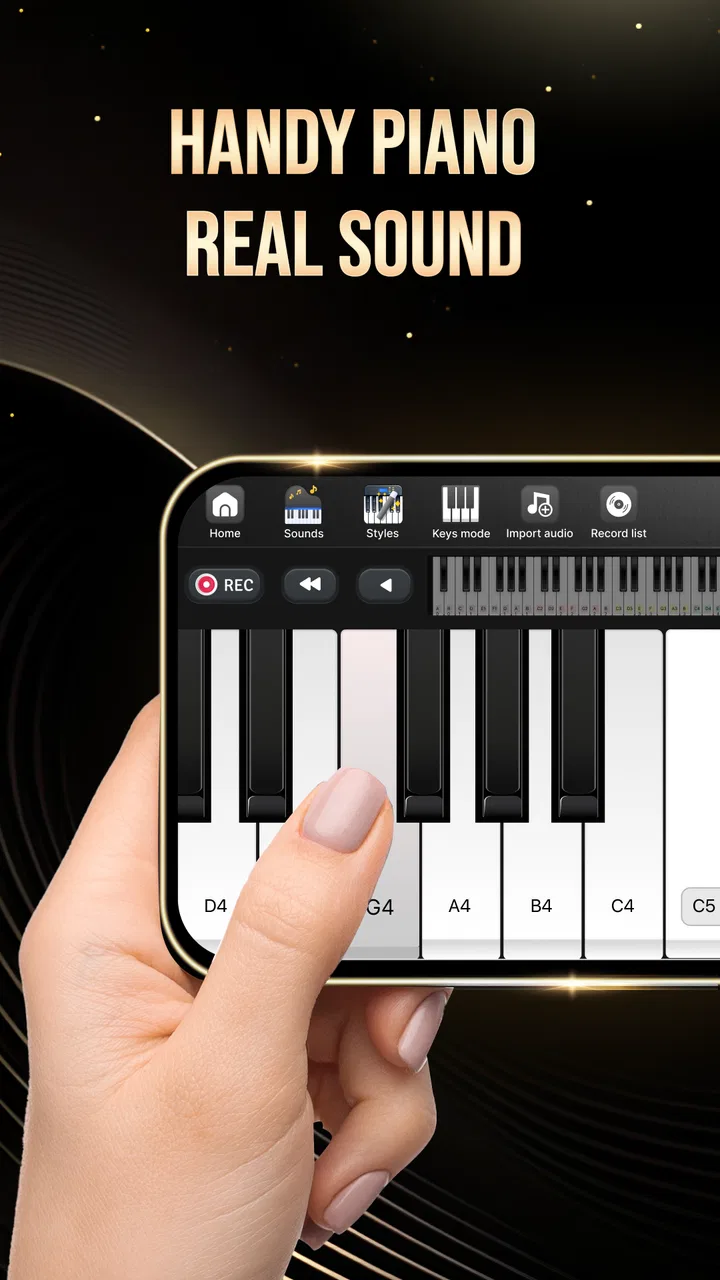
Its store summary focuses on easy piano chords and a complete keyboard with real sound, and that description matches the basic experience without telling the whole story. The real benefit is the low barrier between curiosity and action. I do not need a physical instrument in the room, and I can use the app for a few minutes without setting up anything elaborate.
Using chords instead of hunting for every note
For a new player, chords are often more useful than isolated notes. A single melody can sound uncertain when played alone, while a simple chord underneath immediately reveals whether the idea has the mood I intended. I found it helpful to choose a small group of familiar chords, play them slowly, and then place a melody over the changes. This turns the keyboard into a practical songwriting aid rather than just a touch-based toy.
One useful workflow is to begin with the left hand, or the lower part of the on-screen keyboard, and establish a repeating harmonic pattern. I then use the higher keys to test a vocal line or instrumental hook. This approach reduces the number of decisions at once and is less frustrating than trying to play a full arrangement immediately. It is also a good way to discover that a promising lyric may need a different chord underneath it.
I would not expect the app to teach harmony as deeply as a structured course or a private teacher. It can make chords feel less intimidating, but understanding why a chord works still requires listening, repetition, and outside guidance. For that reason, I see it as a hands-on companion to learning, not a complete music curriculum.
Where it fits in a creator’s first draft
For creators, the strongest use case is the rough draft stage. I can use the keyboard to find a starting key, check the contour of a chorus, or work out whether two sections transition naturally. It is also handy for people who write lyrics first and need a quick harmonic bed before opening a desktop workstation.
A realistic example is writing on a quiet evening when an idea arrives but a full instrument is unavailable. I might tap a few low notes, settle on a chord movement, and play the vocal melody above it. Even if I do not preserve a formal recording, the session can answer an important creative question: is the idea actually working, or did it only sound good in my head? That kind of quick reality check is where this app earns its place.
My main tip is to use the keyboard for decisions, not perfection. Treat the first session as a sketching exercise. If I spend too long trying to perform flawlessly on glass, I lose the creative thought that brought me there. A physical MIDI keyboard or acoustic piano is better for expressive playing; this app is better for speed and availability.
Turning a rough idea into a playable arrangement
Once the notes are clear enough to repeat, I can focus on how they fit together rather than trying to perform a polished piece on a touchscreen. I would build the arrangement in layers, checking the chord movement first and then adding a modest melody, because that makes mismatches easier to hear. The next section looks at how to refine those choices without changing everything at once.
Practising the movement between chords
Once I have a basic progression, the next challenge is making it feel natural. The app gives me a convenient place to repeat the changes until my fingers, or tapping pattern, stop hesitating. That repetition helps reveal awkward jumps. A chord sequence that looks simple on paper may feel difficult when I move between its shapes, and the on-screen keyboard makes those trouble spots obvious.
I recommend practising one transition at a time instead of repeatedly playing the entire progression from the beginning. I start with two chords, slow down the movement, and listen for uneven timing. Then I add the next chord. This is a small but meaningful improvement over randomly tapping through the keyboard, because it turns the app into a focused practice tool.
The trade-off is physical. A phone or tablet screen does not provide the spacing, resistance, or tactile landmarks of real keys. I can learn the sound and order of a chord, but my hand technique will not develop exactly as it would on an instrument. Beginners should therefore use the app to understand patterns and train their ears, while moving to a real keyboard when posture, finger strength, and performance technique become priorities.
Building a melody without overcomplicating it
For melody writing, I prefer to limit myself to a small range at first. I play the phrase in a comfortable register, repeat it, and then test whether changing one note improves the ending. This makes iteration clearer because I am comparing one musical choice at a time rather than constantly changing the entire idea.
The realistic sound helps here. It is easier to judge whether a note clashes when the keyboard response feels closer to a piano than to a simple electronic beep. That does not make the app a studio instrument, but it does give the ear enough information to make useful decisions about pitch and harmony.
A practical trick is to play the melody with exaggerated pauses. Holding back the next note can show whether the phrase has a natural rhythm or whether it depends on rushing through weak spots. I also like trying the same idea over a different chord, because a melody can change character dramatically without changing its notes. These experiments are more valuable than simply playing the first version repeatedly.
Managing the limits of touch controls
Touch input is convenient, but it changes how I play. On a small phone, several keys can feel cramped, and fast passages are harder to control than on a full-size keyboard. I get better results when I use a larger screen, rotate my device if the layout allows it comfortably, and keep the musical phrase simple enough to see clearly.
This is also why I would not choose the app for recording a virtuosic performance or demonstrating advanced technique. A touchscreen can capture the idea of a run, but it is not the right surface for nuanced dynamics, sustained pedal work, or reliable multi-finger accuracy. If the goal is expressive performance rather than composition, a physical instrument is the better alternative.
For casual practice, however, the limitation can be useful. It encourages me to strip an idea down to its essential notes. I often discover that a chorus is stronger when its hook survives a simplified version. In that way, the imperfect control becomes a creative filter rather than only a weakness.
Iterating without losing the original idea
When I revise a phrase, keeping one version in mind gives me a fair comparison: I can hear whether a changed ending or supporting chord genuinely helps. I also like testing a simpler variation before adding complexity, since a strong musical idea should still work when stripped back. That approach leads naturally to the question of how to communicate a sketch to someone else.
Small changes reveal more than constant restarting
Good musical editing usually comes from controlled changes. With this app, I can take a short phrase and alter its ending, rhythm, or supporting chord while keeping the rest stable. That makes comparison easier. If I change everything at once, I cannot tell which decision improved the idea; if I change one element, the result is much clearer.
I use a three-pass approach. First, I play the idea exactly as I imagined it. Second, I simplify it by removing extra notes. Third, I try one deliberately different version, such as moving the melody higher or changing the final chord. The simplified version often exposes the real hook, while the contrasting version prevents me from becoming attached to the first draft too quickly.
This kind of iteration is where the app feels more useful than a passive listening tool. I am not just consuming music; I am testing choices. It can help a songwriter decide whether a verse needs more movement, whether a jingle is memorable, or whether a short instrumental motif has enough identity to develop further.
Using the app alongside other creative tools
I would not make it the centre of a complete production workflow. A digital audio workstation, notation program, or dedicated recording app is better when I need multiple tracks, detailed editing, effects, arrangement markers, or a finished mix. Learn Piano - Real Keyboard is most effective before those stages, when the question is still “what should this piece be?” rather than “how do I polish the final file?”
My preferred handoff is simple: use the app to find the notes and chord movement, then write those decisions down or recreate them in the tool where the project will be produced. This may sound basic, but it prevents a common problem: spending time searching for a perfect mobile workflow when the app’s real value is rapid discovery.
It also works well next to a physical piano. I can use the app away from home to remember a progression, then confirm the fingering and expression later on real keys. The two tools serve different purposes. The phone provides access; the instrument provides touch, depth, and performance feedback.
What the paid elements mean for casual users
The app is free to install, which makes it easy to try before deciding whether it belongs in a regular practice routine. In-app purchases range from $3.99 to $18.99 per item. I would approach those purchases carefully and first establish whether the basic keyboard meets my needs. A free starting point is valuable, but the overall cost can matter if I am comparing it with a one-time learning app, a physical keyboard, or a more complete music tool.
For a child or teenager using it casually, I would also pay attention to the Teen content rating and keep purchasing decisions under adult control. The rating does not make the app unsuitable for younger learners by itself, but it is a reminder to check the experience on the specific device and account being used.
The most sensible buying question is not whether extra access sounds attractive, but whether it solves a problem I actually have. If I only need a quick chord finder and practice surface, the free version may be enough. If I use it frequently and a paid option removes a recurring obstacle, the value becomes easier to judge. I would avoid paying simply because I feel committed after a few sessions.
From personal sketch to handoff
A useful handoff is less about showing off a phone performance and more about making the musical intent understandable. I would note the chord order, melody contour, and any rhythm that matters, then use the keyboard to demonstrate the idea if words alone feel vague. The final section considers how that personal sketch can become a clear starting point for another musician or a fuller production.
Preparing an idea for another musician
The app is useful before a collaboration because it helps me clarify what I mean. Instead of telling another musician that a melody should feel “a little higher” or that the chorus needs “different chords,” I can work out the actual notes and progression first. Even a rough demonstration on the keyboard can make a creative conversation more precise.
That said, I would not mistake a live phone performance for a finished demo. The touch surface and mobile sound are suitable for communicating an idea, but not necessarily for presenting the final emotional impact of a song. For handoff, the important information is the musical structure: the key area, chord order, melody shape, and intended rhythm. The receiving musician can then recreate it with better control.
For a solo creator, this distinction prevents wasted effort. I can use the app to make a decision, preserve the useful details in notes, and move on to arranging vocals, drums, or other instruments in a more capable environment. The app earns its keep by shortening the distance between inspiration and a clear brief.
What to expect on older devices
The minimum operating system is Android 7.0, so compatibility is relatively broad for Android users with older phones or tablets. Even so, the practical experience will depend on screen size, touch responsiveness, speaker quality, and how comfortable the device is to hold while playing. A technically compatible phone may still be awkward for two-handed work if its display is small.
The current version is 3.2.157, and I would keep the app updated through the normal store process when possible. Updates can matter for stability and compatibility, but I would still test the keyboard before relying on it for an important rehearsal or creative session. Mobile apps can feel very different across devices, especially when timing and touch response are central to the experience.
For iOS users, the practical question is whether the version available on their device offers the same comfortable workflow they need. I would judge it by the same standards: responsive keys, readable layout, and enough screen space to play without constant accidental taps. The concept is portable, but the physical feel of the device remains part of the experience.
Who should choose something else
I would skip this app if my priority is formal piano instruction with a carefully sequenced curriculum, detailed feedback, or a teacher-led path. It may help me practise, but it is not a substitute for systematic lessons. I would also choose a dedicated workstation if I need to record, edit, mix, and deliver a complete production from one place.
Advanced pianists may find the touchscreen restrictive, particularly when they need velocity control, pedal technique, wide voicings, or fast passages. A MIDI keyboard is a much better investment for those needs. Likewise, someone who wants a large library of guided songs or a social learning environment should compare it with apps designed specifically around those features.
Where it makes more sense is for beginners, lyricists, casual players, and producers who need a portable idea generator. It is also a sensible first experiment for someone unsure whether piano-based songwriting is worth pursuing. The low commitment lets me explore the instrument before buying hardware or subscribing to a more specialised service.
My verdict for everyday creative work
After using Learn Piano - Real Keyboard as a sketching and practice tool, I see it as a practical entry point rather than an all-in-one musical solution. Its complete on-screen keyboard, realistic sound, and straightforward access make it easy to test chords and melodies whenever an idea appears. WorkPlay Space has aimed at the right problem: helping people start playing before they feel ready.
Its biggest strength is speed. I can move from a vague musical thought to a playable outline in moments, then use repetition and small variations to decide what deserves further work. That is genuinely useful for songwriting, lesson support, and quick collaboration. The app is free, available for Android 7.0 and later, and carries a Teen rating, while its large install base shows that this portable approach has broad appeal.
Its biggest weakness is the unavoidable compromise of a touchscreen. The sound may be convincing enough for decisions, but the playing surface does not replace real keys. The app also sits below a full production environment when I need reliable recording, detailed editing, or a polished handoff. Those are not reasons to dismiss it; they simply define the correct stage for using it.
I would recommend it to a friend who wants to learn basic chords, test song ideas, or keep a piano-like tool nearby without buying hardware immediately. I would tell an advanced player to treat it as a backup sketchpad, not a performance instrument. Use it to capture and refine the musical idea, then move to the right tool for practice, production, or final delivery. That is where this app feels most honest and most valuable.
FAQs for Learn Piano - Real Keyboard
01What features does Learn Piano - Real Keyboard offer?
Learn Piano - Real Keyboard offers a variety of features including interactive lessons for beginners and advanced players, a wide selection of songs to learn, and a virtual keyboard that simulates real piano sounds. The app also includes progress tracking, allowing users to monitor their improvement over time, and fun challenges to keep users engaged.
02Is Learn Piano - Real Keyboard suitable for beginners?
Yes, Learn Piano - Real Keyboard is designed with beginners in mind. It offers step-by-step lessons that start with the basics and gradually increase in difficulty. The interactive tutorials are easy to follow, making it a great choice for those new to playing the piano. Advanced players can also benefit from more challenging content.
03Does the app require an internet connection?
Learn Piano - Real Keyboard can be used offline for most of its features, such as playing the virtual keyboard and accessing downloaded lessons. However, an internet connection is required for downloading new content, updating the app, and accessing any online community features or competitions.
04Can I use an external keyboard with the app?
Yes, Learn Piano - Real Keyboard supports the use of external MIDI keyboards. This feature allows users to connect their physical keyboard to the app, providing a more authentic playing experience. It enhances learning by allowing users to practice on real keys while still accessing the app’s interactive features.
05Are there in-app purchases or subscriptions available?
Learn Piano - Real Keyboard offers both free and premium content. While the basic app can be used without payment, there are in-app purchases and subscription options available for users who want access to additional songs, advanced lessons, and personalized coaching features. These options provide a more comprehensive learning experience.
Pros
- User-friendly interface for beginners.
- Wide variety of song tutorials.
- Realistic keyboard sound quality.
- Customizable practice sessions.
- Supports MIDI keyboards for advanced users.
Cons
- Ads can be intrusive at times.
- Limited free content available.
- Requires internet for most features.
- No offline mode for lessons.
- In-app purchases can get expensive.

Learn Piano - Real Keyboard
Gallery